Before you start: use your own verified account and business workspace. On desktop, modules appear in the left sidebar. On smaller screens, use the workspace navigation to select the same module names. A missing or read-only module usually means your administrator has not granted that access.
01
Create a project with your own name
Where to go Your new business workspace
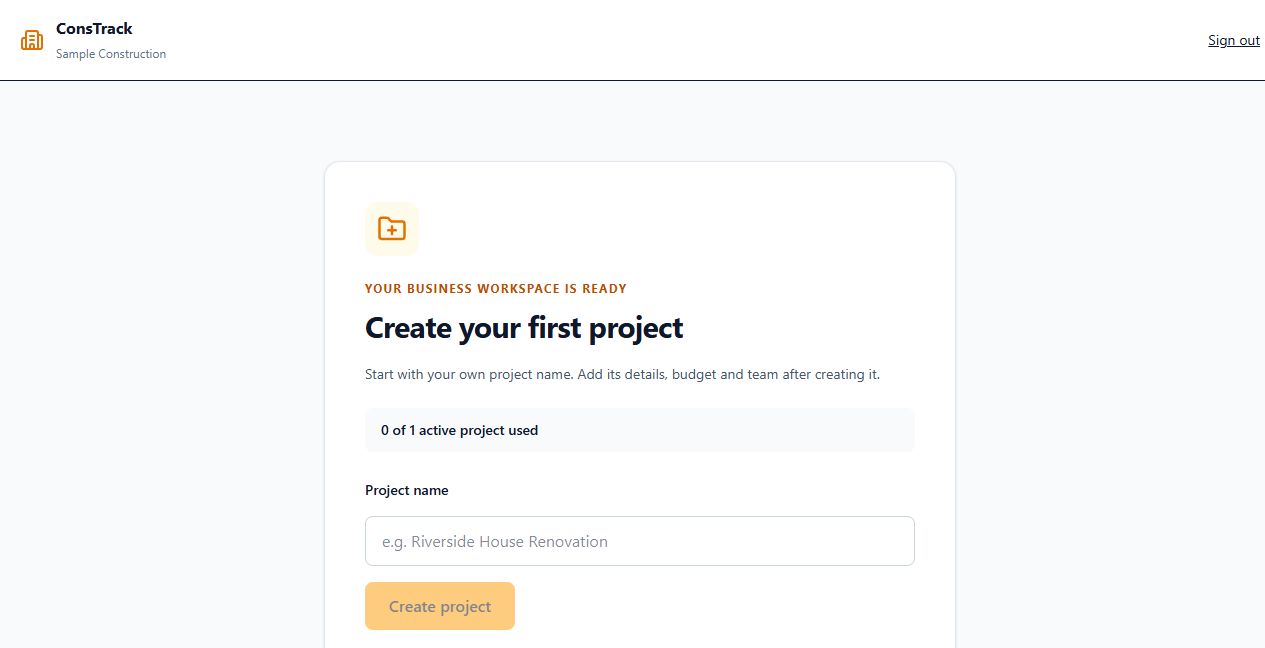
After creating your business, look for Create your first project. A new workspace starts with zero projects.
Enter a name you recognize in Project name, such as “Riverside House Renovation”.
Select Create project. Wait for your project workspace to open.
You should see: your project name in the workspace. Your allowance is used when you create the project.
Empty workspace example using a sample business. Open full size ↗Already have a project?
Open it using the project selector at the top. To create an additional project, use Project Setup → New Project when your plan has capacity. The free plan includes one active project; keep existing work rather than creating a duplicate.
02
Set the project details
Where to go Project Setup
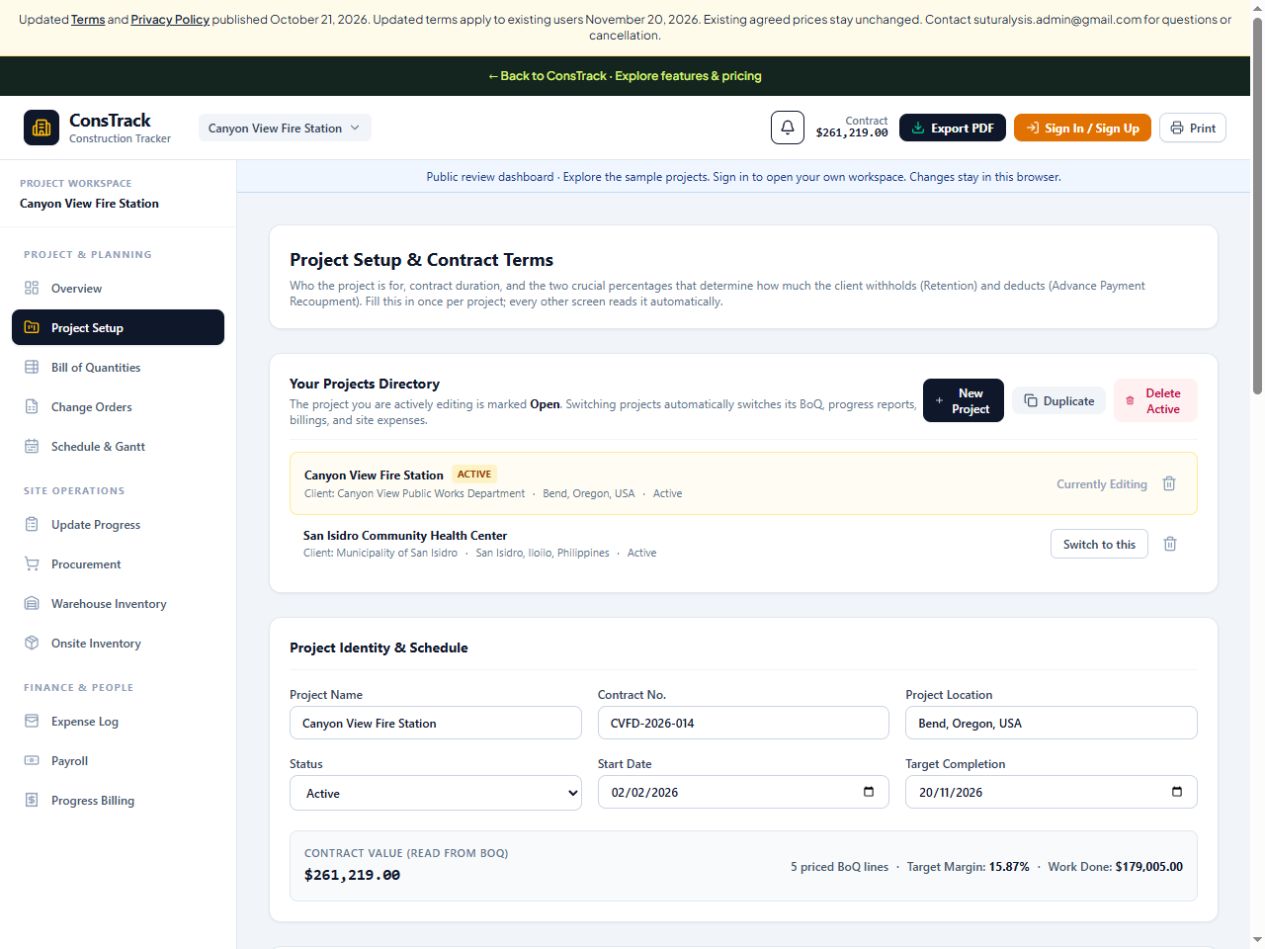
Open Project Setup. Under Project Identity & Schedule, enter the project name, contract number, location, start date and target completion.
Check Regional & Measurement Defaults: currency, date and number format, project time zone and measurement system. Currency selection changes formatting; it does not convert amounts.
Enter the client’s details under Client Information. Review retention, advance and tax settings against your actual agreement before using billing.
Changes save automatically in a connected live workspace. Check the workspace status for Saved to Supabase before closing the page.
Project Setup in the sample workspace. Your project starts with your own details. Open full size ↗
Start small. You can return to this screen as details become available. Check the selected project before editing.
03
Add the work items and cost budget
Where to go Bill of Quantities
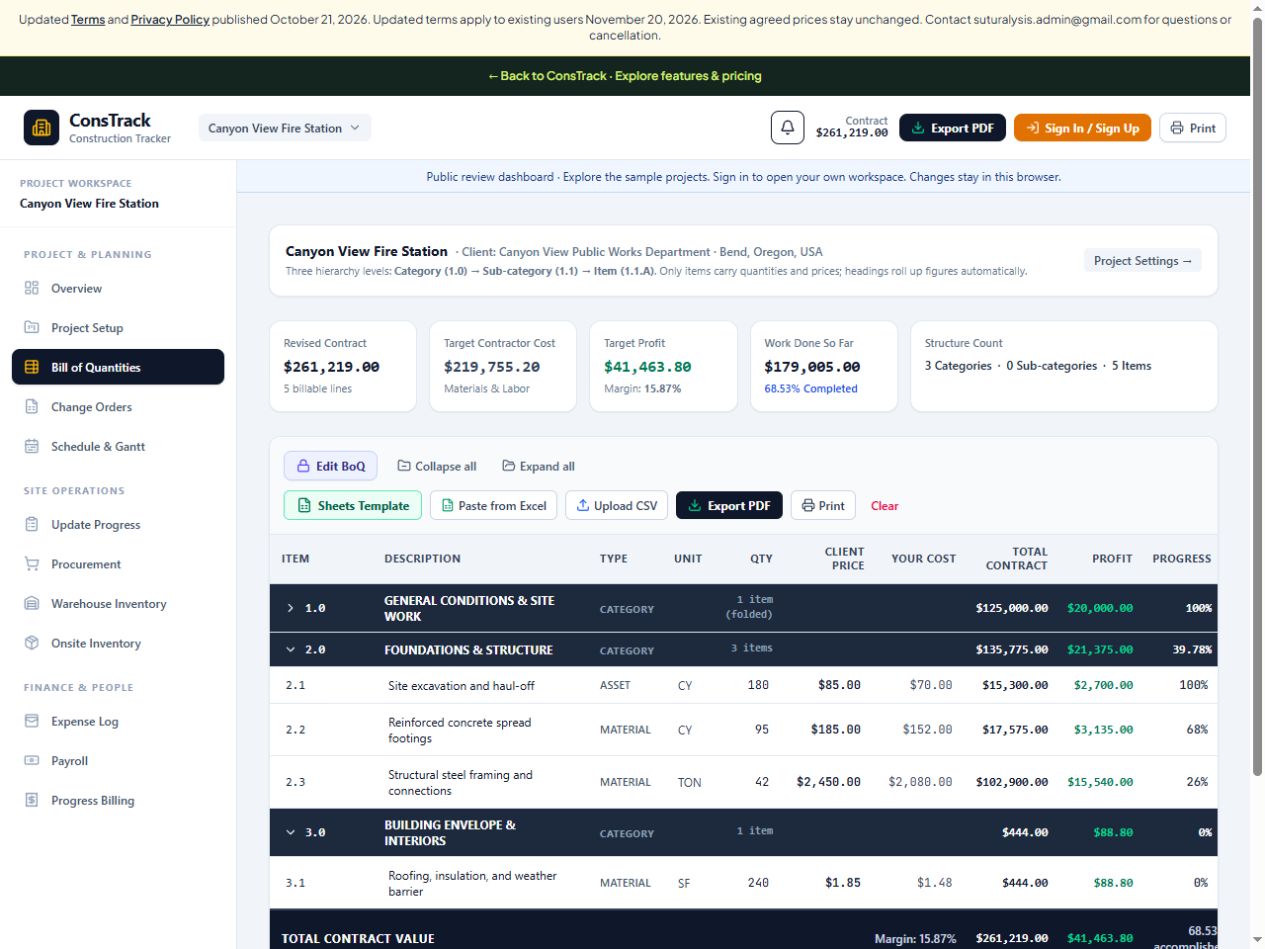
The Bill of Quantities (BoQ) lists the work, quantities and prices. The client price and your cost serve different purposes.
Open Bill of Quantities. If an existing sheet is locked, use Edit BoQ when you have edit permission.
On an empty sheet, use + Add Category (1.0), add a sub-category if needed, then + Add Item (1.1.A). Headings organize the sheet; item rows carry quantities and prices.
For each item, fill in the description, type, unit and quantity. Enter the unit rate charged to the client under Client Price and your planned unit cost under Your Cost.
Check the totals. You can also use Paste from Excel or the CSV import controls, reviewing the column format and imported rows before relying on them.
A simple example
10 units × a client price of 100 = a contract value of 1,000. 10 units × your cost of 70 = a target cost budget of 700.
Amounts use your project currency. These are example figures, not a construction estimate.
A populated sample BoQ. Swipe the table sideways on mobile to reach additional columns. Open full size ↗
You should see: item quantities and project totals that match the records you entered. Review unit rates and units before continuing.
04
Invite a teammate to this project
Where to go Manage project team → Invite Team Member
As the business administrator, select Manage project team above the workspace, then Invite Team Member.
Choose the correct Project access. Enter the person’s name, job title and Team Member Email.
Review the module permissions. Grant view or edit access only where needed. A worker reporting site activity needs the appropriate access to Update Progress.
Select Generate Invite Link, then Copy Link and share it with the named recipient.
The teammate opens the link, signs in or registers with the invited email, verifies it if needed and accepts the invitation.
Send the link yourself. Generating an invitation does not automatically email it. Send using my email app opens a draft that you must send. Pending invitations reserve a project seat.
You should see: the teammate in your team records after acceptance, with access to the assigned project.
05
Record the day’s work and photos
Where to go Update Progress → + Fast Field Log (60s Entry)
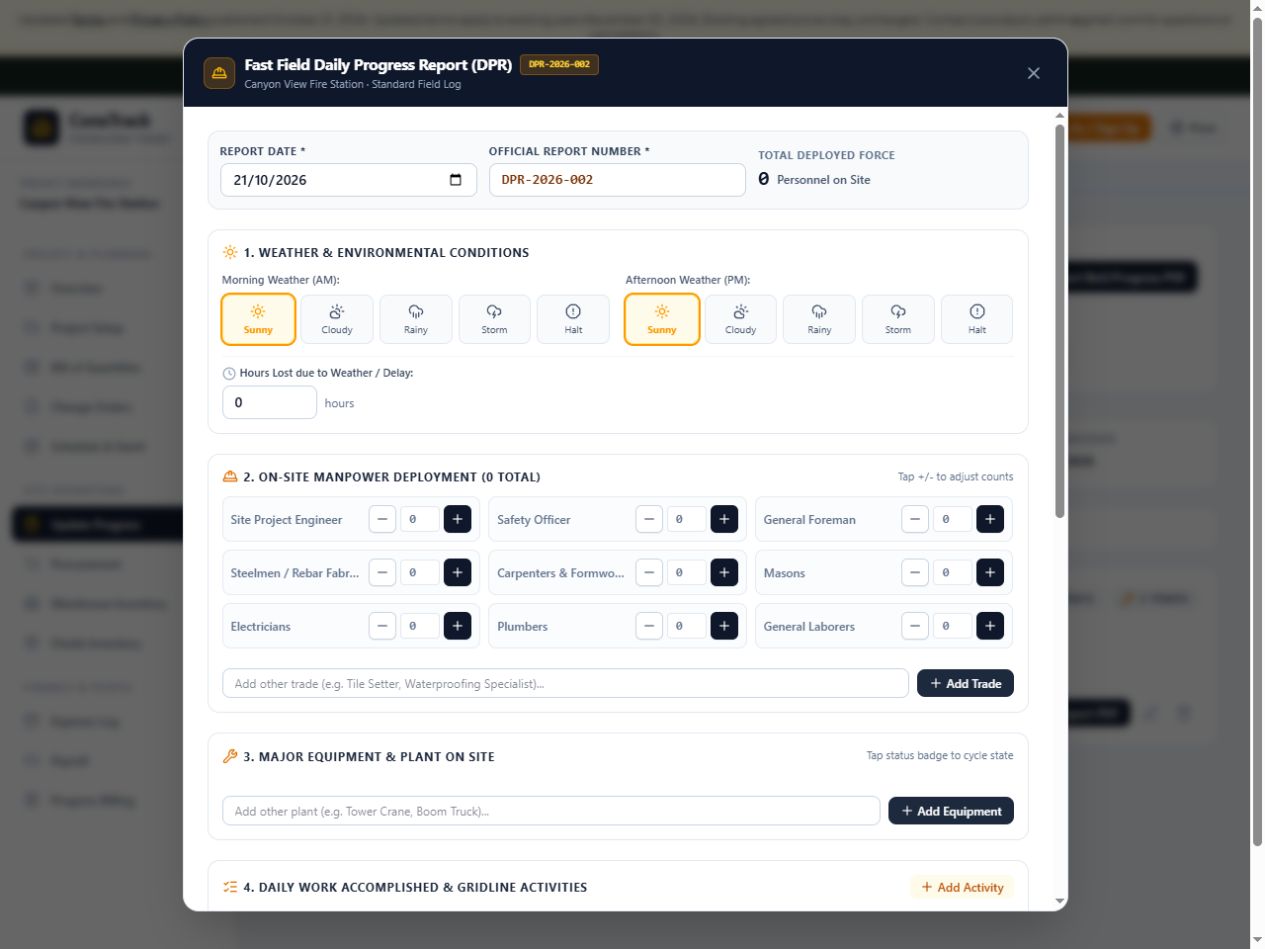
Check the project name, then open Update Progress and select + Fast Field Log (60s Entry).
Check the Report Date and report number. Record the weather, manpower and equipment relevant to that day.
Under Daily Work Accomplished & Gridline Activities, use Add Activity. Describe what was done and where. Link the correct BoQ item when applicable.
Add supporting images with Take Photo or Choose from Phone / Files. Add captions that explain what the photos show.
Complete the required Prepared By name and title, review the form, then select Save & Record Daily Report.
Return to Daily Progress Reports (DPR Field Logs) and check your saved report. In a connected live workspace, wait for the saved status.
The real field report form in the sample workspace. Scroll inside the form for activities, photos and the save button. Open full size ↗
A field log records what happened. Saving a log does not by itself confirm measured BoQ quantities or material consumption. Where DPR approvals are enabled, use that separate review workflow for confirmed quantities.
You’ve completed the walkthrough: your project has its own details, a work and budget record, a path for team access and a saved site report.
→
What to do after your first report
Record actual spending
Open Expense Log to enter project expenses and supporting receipt photos. Review recorded spending against your cost budget.
Open Progress Billing after reviewing recorded progress and contract terms. Check the billing preview before selecting Issue this Billing.
Issuing a billing records an amount billed; it does not mean payment was received.
?
If something does not look right
I cannot see or edit a module
Check the project selected at the top. Ask your administrator to review your project assignment and module view/edit permissions.
My teammate has not received an invitation email
The invitation link must be shared. Ask the administrator to copy and send the generated link, then use the exact invited email address to accept it.
Changes are not showing on another device
Check that both devices are online, viewing the same project and using authorized accounts. Wait for the saved status. If reconnection continues or an error appears, keep your drafts and contact support before clearing browser data.
Open Help & Support in your signed-in workspace. Choose Request help or a feature and explain which project, screen and action caused the problem. Your request is private to you and the website owner. You can also email suturalysis.admin@gmail.com.